
So, you’re starting a business and need a logo—but you’re not exactly swimming in extra cash to hire a designer. That’s where free AI logo makers come in. These tools promise quick, professional-looking logos without requiring any design skills. Sounds perfect, right?
Well, yes… but not always.
Many small business owners run into issues when using free AI logo generators and end up with designs that are too low-quality, generic, or unusable for real business branding. And trust me—you don’t want to spend hours creating a logo only to find out you can’t legally use it or that it looks terrible on your website.
Before you hit “download,” here are seven common mistakes to avoid when using a free AI logo maker—and what to do instead.
The Best Free AI Logo Makers of 2025
1. Assuming the Logo is Completely Free
Many AI logo makers advertise free logo creation but require you to pay to download the final file. This is probably the most frustrating discovery for new business owners—especially if you’ve already spent time customizing a design.
Example:
You create a logo thinking it’s 100% free. After tweaking the logo for 30 minutes, you go to download your masterpiece—only to find out you have to pay $20 (or more) to actually use it.
How to Avoid This Mistake:
- Always check the pricing page or terms of use before spending time designing.
- Use AI logo makers that offer 100% free downloads, like Canva, Hatchful, or LogoMakr.
- If you like a paid logo but don’t want to spend money yet, take a screenshot and recreate it in Canva for free.
2. Downloading a Low-Resolution File That Is Too Small for T-Shirts, Signs, etc.
Some free AI logo makers provide only a small, lower-quality JPEG or PNG file, which may look great on your website but will appear blurry or pixelated when printed on t-shirts, coffee mugs, or signage.
Example:
Sarah, a new boutique owner, downloads her AI-generated logo and it looks great on her Instagram page. But when she tries to print it on a store sign, it turns into a blurry mess because it’s only 500 pixels wide—nowhere near large enough for professional printing.
How to Avoid (or Fix) This Issue:
- Choose a logo maker that offers high-resolution PNGs, SVGs, or vector files (these scale to much larger image sizes without losing quality).
- If your AI tool only provides a small PNG, use Canva or Adobe Express to create a higher-resolution version.
- If you’re serious about branding, consider upgrading to a paid logo download for a better-quality file.
3. Not Checking for Watermarks
Some free AI logo makers slap a watermark on your design unless you pay for the premium version. A watermark-free logo is essential for branding—no one wants a logo with a “Made with FreeLogoMaker.com” stamp on it.
Example:
David, an online coach, creates a sleek, modern logo using an AI tool. He adds it to his website —only to realize there’s a watermark in the background, making his brand look amateurish.
How to Avoid This Mistake:
- Use AI logo makers that provide watermark-free logos, like Hatchful or Zyro.
- If your AI tool adds a watermark, check if free alternatives exist with similar designs.
- If you absolutely love the logo and it’s worth the upgrade, consider paying a small one-time fee for the watermark-free version.
4. Ignoring Commercial Usage Rights
Just because an AI logo maker lets you download a free logo doesn’t mean you have the legal right to use it for business purposes. Some AI tools allow free downloads only for personal use and require payment for commercial licensing.
Example:
Lisa starts an online jewelry store using a free AI-generated logo. A few months later, she receives a legal notice from the platform stating that she violated their licensing terms by using the logo commercially.
How to Avoid This Issue:
- Check the license agreement on the logo maker’s website before using the design for business.
- Look for “free for commercial use” disclaimers. If you don’t see one, assume there are restrictions.
- If needed, modify the AI-generated logo enough (changing fonts, colors, or layouts) to ensure originality.
PRO TIP: Read the fine print! For example, Canva offers logo templates, but you cannot use most (or all) of them commercially unless you’ve edited, changed or enhanced something in their logo template.
5. Choosing a Generic or Overused Design
Many AI logo makers pull from the same stock icon libraries, meaning many businesses end up with identical or very similar logos.
Example:
A bakery and a finance consulting firm somehow end up with the exact same AI-generated logo—a generic swoosh and text. Neither brand stands out, and both look cheap and forgettable.
How to Avoid This Mistake:
- Avoid basic, overused symbols like swooshes, globes, or abstract figures.
- If your AI tool offers customization, modify the font, colors, and layout to make your logo unique.
- Use tools like Canva to personalize the AI-generated logo further.
6. Forgetting to Test the Logo on Different Backgrounds
This issue is true for any logo you create, not just free AI logos. Some logos look great on a white background but disappear on darker colors or textured backgrounds.
Example:
Mike, a fitness coach, downloads his AI logo and places it on his website. It looks great—until he uploads it on social media, where it completely blends into the background.
How to Avoid This Issue:
- Make sure your logo has a transparent background option so it works on different surfaces.
- Test it on light, dark, and colored backgrounds before finalizing your design.
- If your AI tool doesn’t offer transparency, remove the background using a tool like remove.bg or if you have Canva Pro account, they also have a background remover.
PRO TIP: Depending on how the logo was created, you may be able to create a second version of your logo so you can use it in a variety of ways. Here’s a quick example of one I was playing around with for a friend of mine…
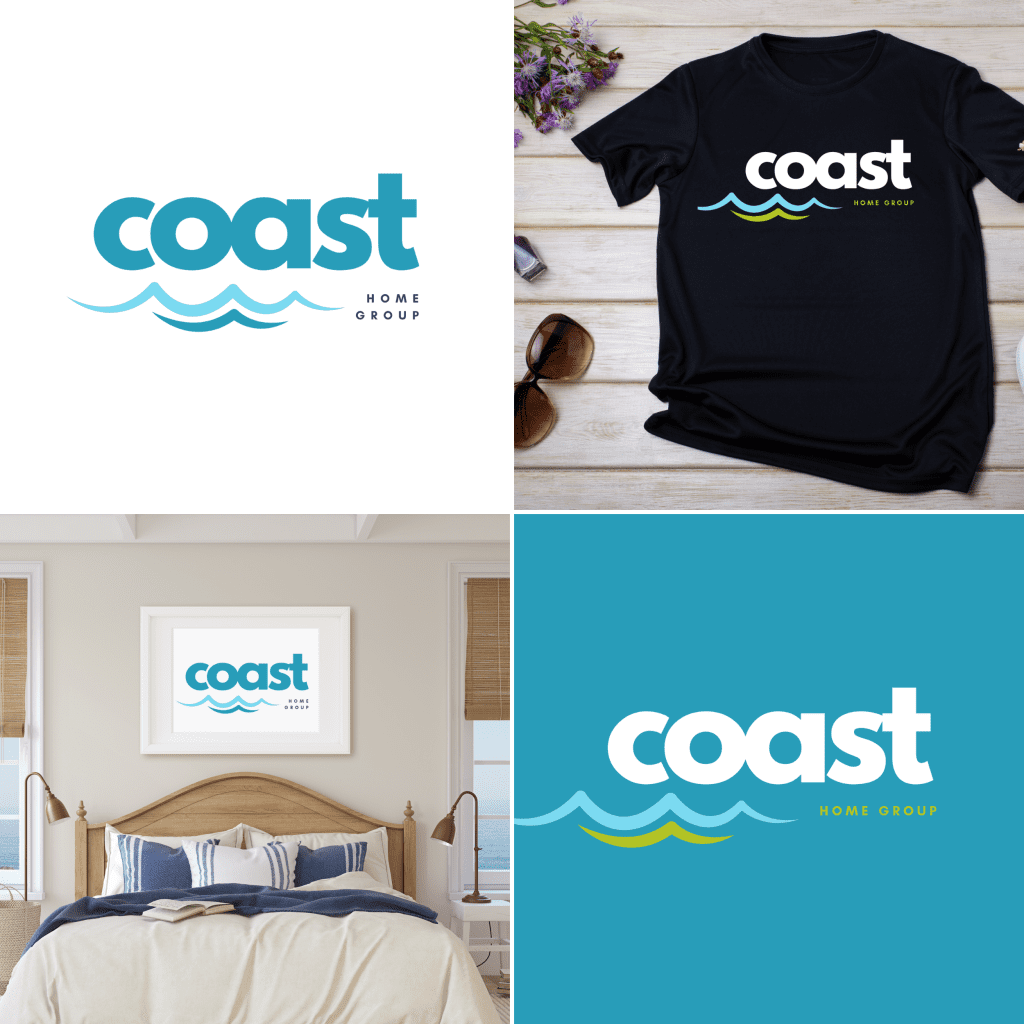
You’ll see that the main logo has the turquoise background, but I also created one with a transparent background (no turquoise) that could be used on dark backgrounds like the t-shirt. I also created a version of the logo where the word “coast” is turquoise so it could be used on other images with a lighter background.
7. Overlooking File Format Options for Branding Materials
Many AI logo makers only provide a single PNG file, which may not work for printing or scaling to different sizes.
Example:
A local coffee shop gets an AI-generated logo and tries to print it on merchandise—only to find out the quality is too low, and the printing company requires a vector file (SVG or EPS).
How to Avoid This Mistake:
- Check if your AI tool offers multiple file formats (PNG, SVG, PDF, EPS).
- If only a PNG is available, convert it to a vector file using Adobe Illustrator or a free converter like Inkscape or Creative Fabrica.
- If possible, always download a transparent PNG and a high-resolution file to ensure flexibility.
Final Thoughts
Free AI logo makers can be a lifesaver for new entrepreneurs, but if you’re not careful, you could end up with a logo that looks cheap, can’t be used commercially, or won’t scale properly for branding.
By knowing what to watch out for—hidden fees, low-quality downloads, licensing restrictions, and generic designs—you’ll save yourself time, frustration, and potential legal issues.
If you’re serious about branding, take an extra step to customize your AI-generated logo, test it on different backgrounds, and make sure it’s formatted correctly for all your business needs.
Don’t Miss These….
AI Logos: Create a Free Logo With AI in Minutes (Possibly Seconds)
The Best Free AI Logo Makers of 2025