

Think creating a professional logo requires hours of design work or hiring an expensive graphic designer?
Not anymore. Thanks to AI, you can generate a sleek, professional-looking logo in just a few minutes—possibly even seconds—with the right tools and prompts.
Whether you’re launching a new business, rebranding, or just need something eye-catching for your side hustle, AI-powered logo generators like Ideogram can help you create a stunning design for free. No design skills? No problem. In this guide, we’ll walk you through the simple steps to create a logo using AI, plus tips to ensure your new logo is high-quality, unique, and ready to represent your brand.
But first—let’s talk about why your logo matters to your business more than you might think.
Your Logo. The Face of Your Brand.
A logo is more than just a pretty design—it’s the face of your brand.
When people see your logo, they instantly form an impression about your business. Does it look professional? Trustworthy? Memorable? If your logo looks generic, outdated, or just plain bad, it can send the wrong message before you even get a chance to prove yourself.
Think of some of the world’s most iconic brands—Nike, Apple, McDonald’s. Their logos are simple, yet instantly recognizable. That’s the power of great branding. Even if you’re not building the next billion-dollar company (yet), having a polished logo helps you:
- Build credibility and trust with potential customers
- Create a consistent brand identity across social media, websites, and marketing materials
- Stand out from competitors, especially in crowded online spaces
The good news? You don’t need a massive budget or hours of design experience to create a logo that looks professional. AI tools can take your vision and turn it into a reality in just a few clicks.
Let’s dive into how you can do it for free—starting with one of the best AI logo maker tools available: Ideogram.
Step 1 | Getting Started
Ideogram is a free AI-powered tool that lets you generate text-based designs—including logos—with impressive results. Unlike some AI generators that struggle with text, Ideogram is surprisingly good at handling typography and composition.
To get started, visit Ideogram’s website and create a free account.
You’ll need to sign up, but the process is quick and painless. Once logged in, you’re ready to start creating your logo with AI.
Step 2 | Creating the Perfect Logo Prompt
This is where the AI magic happens—or where things go hilariously wrong if you don’t phrase your prompt (i.e. “instructions”) the image generator correctly.
AI is powerful, but it’s not a mind reader.
If you just type “cool coffee shop logo,” you might get something that looks like it was made in 1997 by a guy named Bob who really loved neon gradients.
For best results, be as specific as possible. Good logo prompts include:
- Your brand name (if you want it in the logo)
- Style keywords (modern, retro, vintage, bold, elegant, feminine, minimal)
- Color preferences (black and gold, pastel tones, monochrome)
- Imagery suggestions (if you want an icon, symbol, illustration, or just text)
Example prompt: “Minimalist black and white logo for a coffee brand called ‘Bold Brew.’ Simple typography, modern feel, with a small coffee cup icon above the text.”
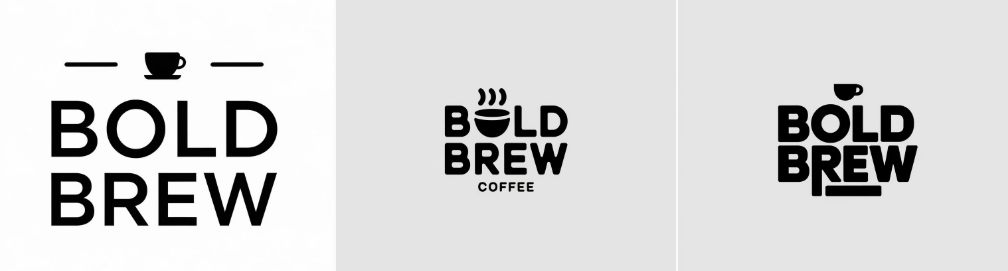
See the difference? The more details you give, the more likely the AI will generate something you actually like.
Step 3: Bringing Your AI Logo to Life
Now comes the fun part—watching AI do its thing. Enter your prompt into Ideogram, hit generate, and wait a few seconds for the magic to happen.
This time, we’ll use a different prompt example: “A cute simple logo for a kids clothing store called Lamb & Lion. Bold text reads “Lion & Lamb” and smaller subtext reads “Clothing.” The lion and lamb should be minimal kawaii style illustrations.“
Ideogram will give you four logo variations to choose from. If none of them feel quite right, tweak your prompt by adding or adjusting details. Maybe you want a different font or a bolder color scheme? Keep refining until you find a version that works.
To refine or update your prompt, just keep editing the prompt at the top of the page and select “Generate” again.
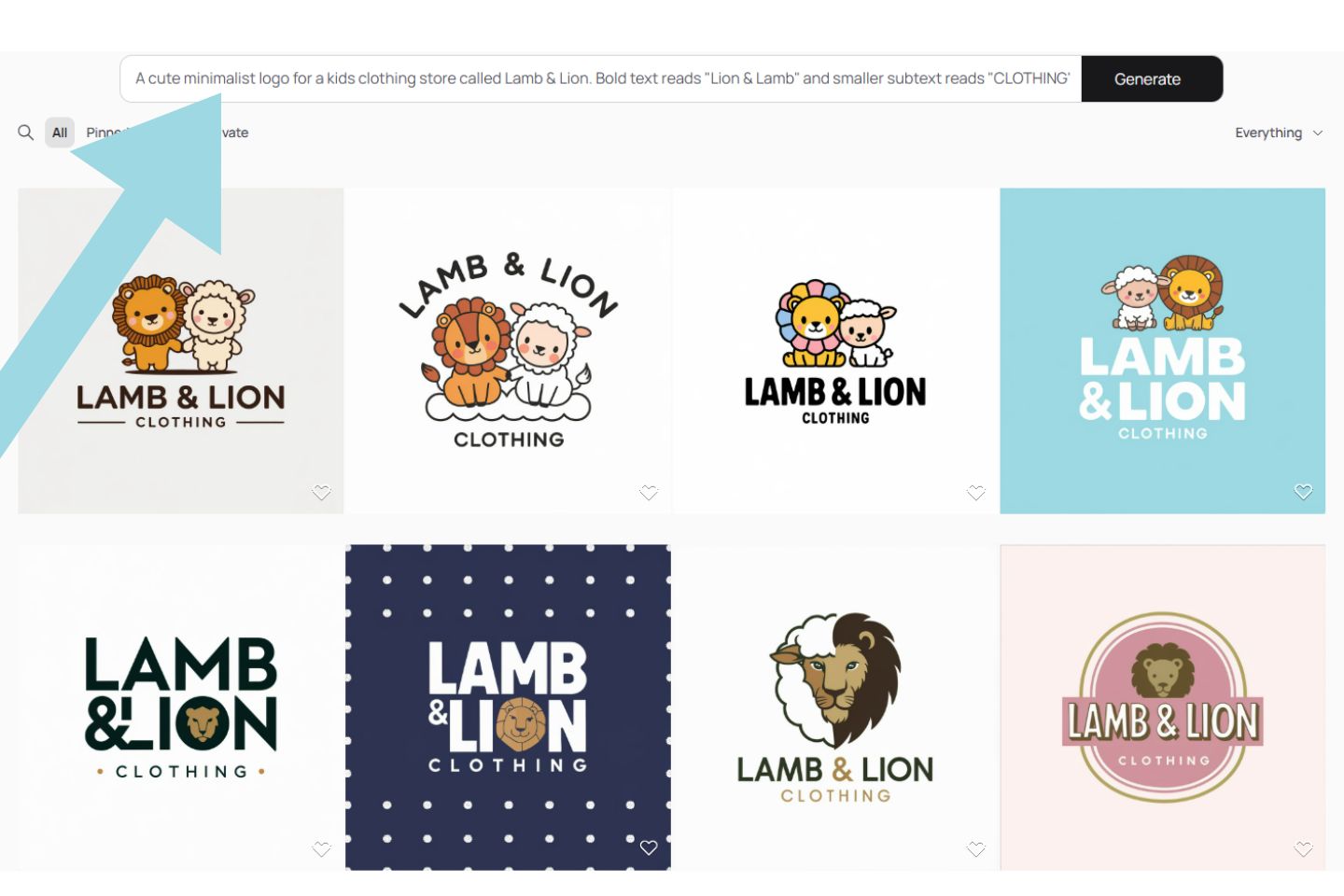
As you’ll see the first logos I created were a bit more “adult” looking and I realized that I forgot to mention in the prompt that this was a KIDS clothing store. So I updated the prompt to include a few new words like “kids”, “cute” and “illustrations.”
The next round of logos was awesome!

PRO TIP: When you are giving instructions to the AI logo generator (aka “prompts”), just act like you are talking with a graphic designer that you’ve hired. Let them know what you’d like your logo to look or feel like, if you want bold text or just keep it minimal, and if there are any colors you’d like them to use.
And if you have no idea what you want your logo to look like, just feed the AI image generator some simple prompts like we did above and keep selecting the “generate” button and Ideogram will give you as many logo ideas as you’d like.
Now that you have at least one logo you love, you’re ready to save it to your computer.
Step 4: Downloading Your Logo
Before you downloading from Ideogram, let’s talk file formats. Different formats serve different purposes, and you’ll want the right one for the job:
- PNG – Best for online use, has a transparent background
- JPEG – Good for general use, but doesn’t support transparency
- SVG – Scalable vector format, perfect for printing and resizing without losing quality
If you plan on using your logo for social media, websites, and merchandise, downloading multiple versions is a smart move.
To Download from Ideogram:
First click on the image you’d like to download. Then look for the three dots in the top right corner. Click on those and select “Download PNG” from the menu. You’ll have two options (PNG or JPEG) and I would recommend downloading both file types separately.
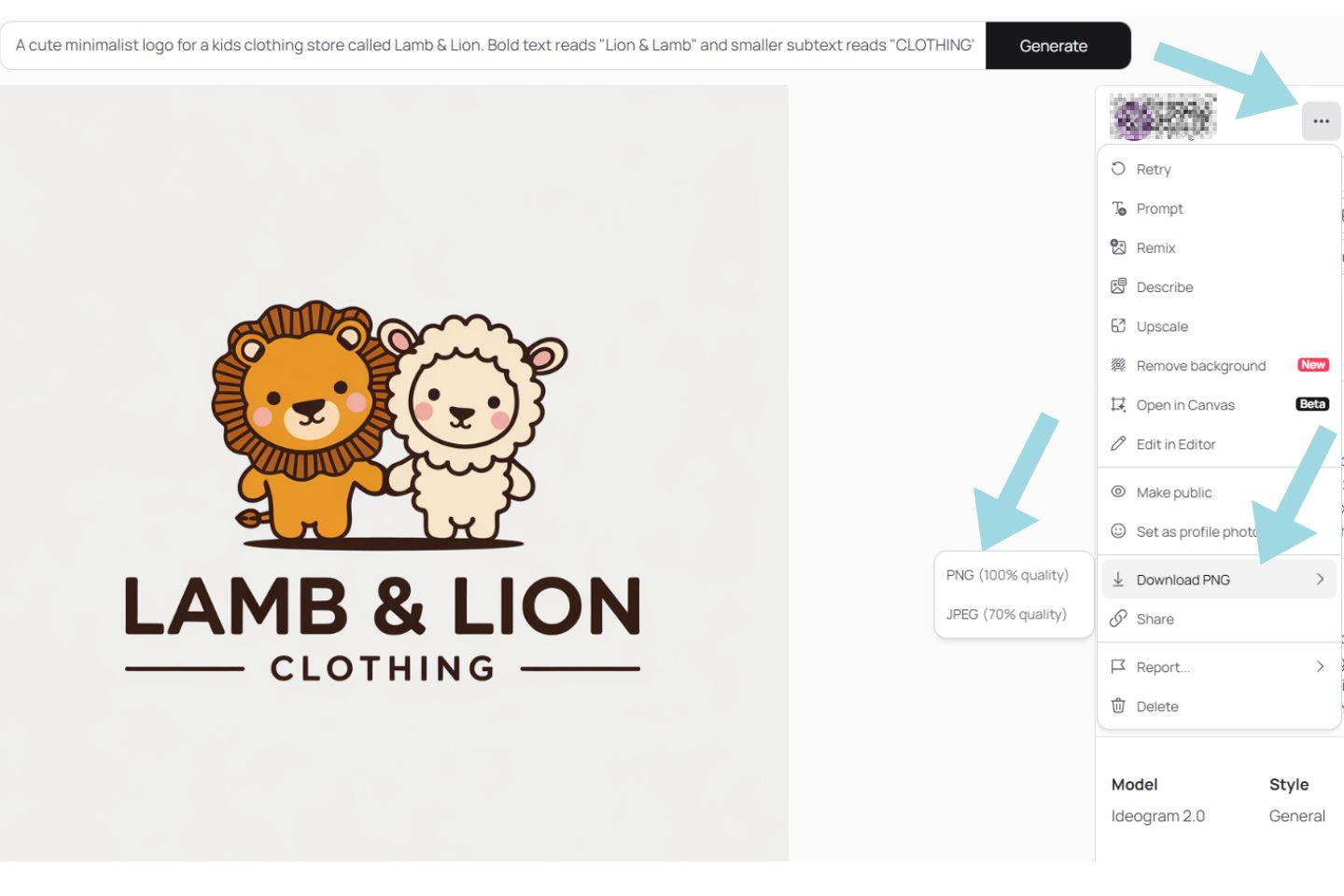
Quick note: If you are using the free version of Ideogram.ai, you can only download a JPEG file, not PNG. I personally think the JPEG files look great on almost anything you’d want to use your logo on (business cards, social media, website, etc).
Step 5: Making the Most of Your New Logo
Now that you have a shiny new logo, it’s time to put it to work. Here’s where you should use it:
- Social Media – Profile pictures, banners, watermarks on content
- Website & Branding – Your homepage, email signature, business cards
- Marketing Materials – Flyers, product packaging, merchandise
Before you go all in, do a quick originality check. AI generates logos based on patterns it has learned, meaning there’s a small chance your design looks similar to something already out there. Run a reverse image search to be safe and ensure you’re not accidentally copying an existing brand.
Customizing and Improving Your AI-Generated Logo
AI gets you 80% of the way there, but sometimes, a little tweaking makes all the difference. If you want to refine your design, here are a few free or low-cost tools that can help:
- Canva – Great for removing the background (making it transparent), as well as making small adjustments and adding custom elements
- Figma – More advanced customization for those who want finer control
- PicMonkey – Great for making edits, background remover and erasing
- Photopea – A free Photoshop alternative for refining details
You can adjust fonts, colors, or spacing to make sure your logo looks exactly how you want it.
Common Mistakes to Avoid When Designing a Logo with AI
Not all AI-generated logos are winners. Here are a few common mistakes to steer clear of:
- Overcomplicating the design – Simple is almost always better
- Using trendy fonts that won’t age well – You don’t want your logo to look outdated in six months
- Forgetting about scalability – Make sure it looks good both small (on a business card) and large (on a billboard)
If you follow these tips, you’ll end up with a logo that not only looks good but also works across different platforms.
The Final Word…
AI has completely changed the game when it comes to design, and creating a professional-looking logo is now easier than ever. While free AI tools like Ideogram can produce incredible results in seconds, it’s still important to put some thought into your brand identity. A great logo is more than just a pretty image—it represents your business, builds recognition, and helps you stand out.
So go ahead, give it a shot! Your perfect logo might be just a few clicks away.
AI logo makercreate AI logocreate logofree logo creatorhow to create a logo with AIideogram logo maker